Publishing
How to sell assets on the Unity Asset Store (what we wish we'd known)
The real path from a folder on your drive to a live listing: publisher profile, packaging, the four key images, review, pricing, and the things that tripped us up along the way.
 Game Seed Assets
· 8 min read
There's a moment every new publisher has. The asset works, the scripts are tidy enough, the demo scene runs. You open the publisher portal expecting to click "upload", and instead you find a list of things you hadn't thought about: four key images at exact pixel sizes, a tax interview, keywords, a category, and a curation team that will look at all of it.
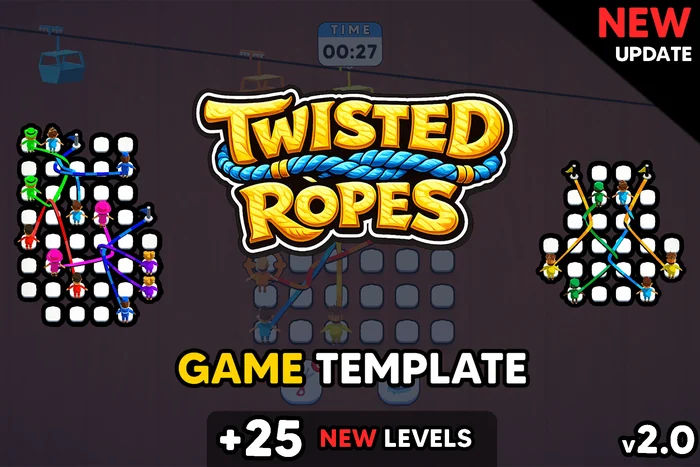
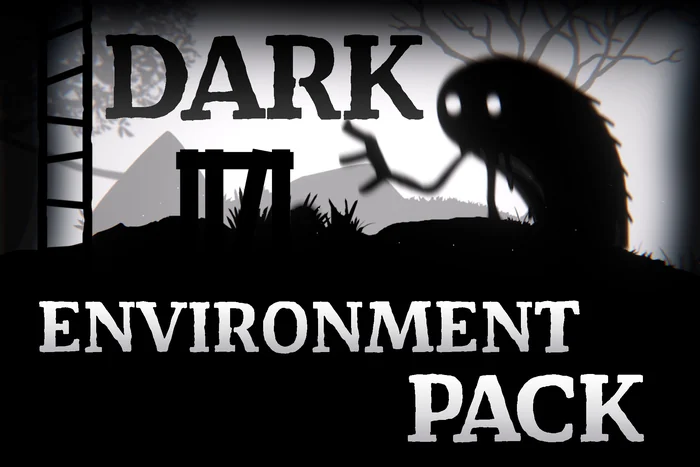
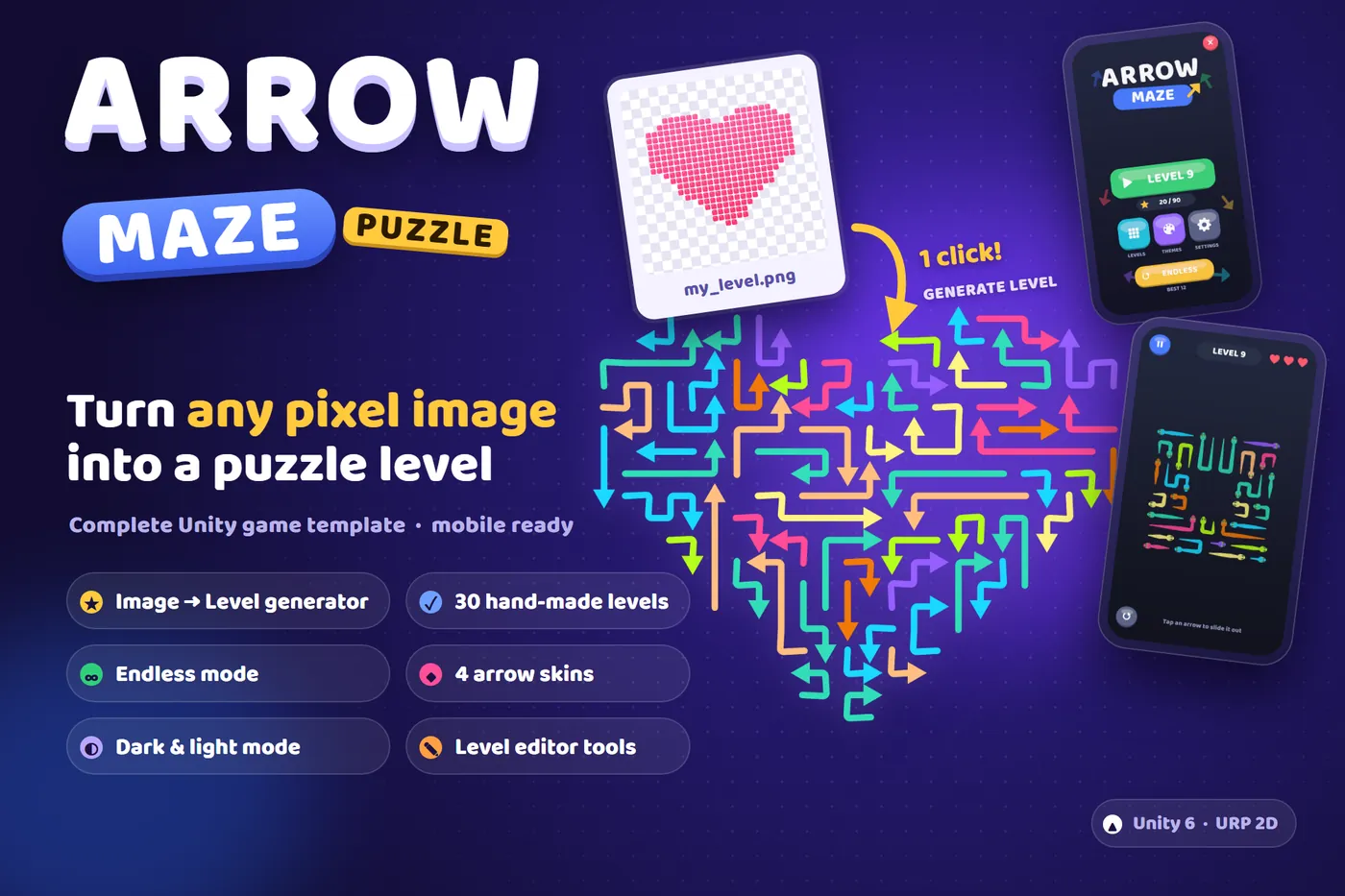
We've been through that portal for more than 25 packs now. Game templates like Arrow Escape and Rope Puzzle, art packs like Dark 2D World, small free VFX packs. This is the guide we'd have liked to read before the first one. It sticks to what Unity actually publishes about the process, and to things we've seen with our own listings.
What it costs, and what you keep
Publishing is free. There's no listing fee and no subscription. Unity's own publishing page puts it in one line: There are no fees to publish on the Asset Store. You retain 70% of all revenue earned.
A few other numbers from the same page are worth knowing before you start:
- Minimum price is $4.99. Anything lower has to be free. There's no $1.99 tier.
- Unity says the store reaches over 1.7 million monthly users, and there are more than 12,000 active publishers. That second number matters. You're not launching into an empty room.
- Payouts are monthly through PayPal or quarterly by bank transfer, once you've set up a payout profile (Unity docs).
So a $20 sale puts $14 in your account before tax. Whether that's a good deal depends on what you compare it to, and we've written a separate comparison with Fab and itch.io for that.
The whole path, start to finish
Here's the route every package takes. None of the steps is difficult on its own. What makes it slow the first time is that each one has a few rules you only discover when something gets rejected.
Step 1: the publisher profile and the boring paperwork
You sign in to the Publisher Portal with your Unity ID and fill in a profile: publisher name, website, a short description, support email. Do this carefully, because your publisher name ends up on every listing and every key image is allowed to carry it.
To actually get paid you also need to complete a tax interview and a payout profile. You can submit packages before this is done, but do it early. It's a questionnaire, not a test, and it's the one step that can hold up your first payout for reasons that have nothing to do with your asset.
One small thing we'd change in hindsight: use a support email on your own domain if you can, not a personal Gmail. It ends up printed in descriptions and docs for years.
Step 2: build a package a stranger can import
This is where most of the real work is, and it's not glamorous. Your project works on your machine because your machine has your settings, your packages and your half-remembered setup steps. The buyer has none of that.
What we check before every upload:
- Everything lives under one root folder named after the asset, so it doesn't spill across the buyer's project.
- There's a demo scene that opens and plays with no setup. If it needs a layer, a tag or a package, the docs say so on page one.
- Scripts sit in their own namespace, so a buyer's
PlayerControllerdoesn't collide with yours. - Documentation is included, even if it's a short PDF or a link to a Notion page. Ours for Arrow Escape is a Notion doc linked from the description.
- Nothing ships that you don't have the rights to distribute.
That last point catches people more than you'd expect. When we made the trailer for Paper Plane Controller, the project had our own capture tools in it plus three third-party environment packs we'd used to make the planes look good on camera. None of that can go in the package. Our internal notes for that project literally say to leave those folders out. The listing also says the environments in the preview aren't included, because buyers will ask.
Unity's Submission Guidelines are the source of truth here, and they change. Read them once properly before your first package and skim them again whenever you submit something new.
Step 3: metadata and the four key images
The store page is built from what you enter here. A few rules from Unity's package details docs that are easy to miss:
- The title shouldn't start with the word "Unity". Their example: not "Unity Sculpting Tools", but "Sculpting Tools for Unity".
- Keywords are a whitespace-separated list with a 255-character limit. Tags can only be edited after the package is accepted.
- If your package is tools or scripting, Unity asks for a video tutorial that explains setup. If it has animations, a video of the animations.
- For 3D content, put polygon counts, texture sizes and render pipeline compatibility in the description.
Then the key images. You upload four, each at an exact size, and each has its own text rules:
All four also share some blanket rules: no Unity logos, no sale banners, not blurry or stretched, not only screenshots of the Editor, and no default Unity skybox in the background. Unity also suggests designing each size separately so things stay legible, rather than shrinking the cover. We agree with that strongly, and the store media post goes into how we do it.
Step 4: upload and submit
You create the package draft in the portal, then upload the actual files from inside the Unity Editor with the Asset Store Tools package. Upload from a clean project that only contains your asset and the packages it truly depends on. If you upload from your messy working project, you will eventually ship something you didn't mean to.
Before submitting, the portal has a Preview in Asset Store button. Use it. It's the only time you'll see the page the way buyers will before a reviewer does. At the very end there's an Auto publish toggle, which decides whether the package goes live the moment it's approved. If you want to line up a trailer, a Discord announcement and a social post, turn it off and publish manually.
Step 5: review, and what happens if you're declined
Unity's curation team either accepts the package or declines it with feedback. Declined isn't a ban. You fix what they flagged and resubmit. In our experience the notes are usually specific and about the boring stuff from steps 2 and 3: a key image breaking a text rule, missing documentation, something in the package that shouldn't be there.
We won't quote you a review time. It varies, and anything we wrote here would be out of date by the time you read it. Plan your launch so a few extra days don't hurt.
Pricing without guessing
Unity's own advice on its FAQ is to avoid undercutting other publishers, because a low price can read as low quality. That's fair, and for art packs we mostly agree.
With Arrow Escape we priced below the pack. The store's own "frequently bought together" box puts it next to a comparable arrow-escape template at $29.99. Ours is $16. As we write this it has four reviews, all five stars, and two of them talk about the price directly. One reviewer called it premium content with a cheap price
; another said the price was what made them hesitate, and that they had no regrets. A cheaper price didn't read as cheap there, because the listing showed enough of the product to back it up.
What we'd suggest:
- Look at the five closest competitors and write down their prices and review counts.
- If you're new with zero reviews, being somewhat below the pack is a reasonable way to get the first ones. Being below $4.99 isn't an option anyway.
- Don't race to the bottom on a mature product. Raise the price as reviews and updates arrive, and say what changed in the version notes.
After launch: the part that keeps the listing alive
The listing goes live, a few people find it, and then the work changes shape:
Reply to every review. Good ones and bad ones. On Arrow Escape every review has a reply from us. It costs a minute and future buyers read those replies as much as the reviews.
Keep the compatibility table honest. The store shows which Unity versions and render pipelines you've tested. When a new Unity version ships, test, then update the package so the table shows it. Buyers filter on this.
Write real version notes. "Bug fixes" tells nobody anything. "Fixed arrows not resetting after a retry; added 10 levels" is a reason to come back.
Point people somewhere they can ask questions. We link a Discord server and offer every buyer three hours of free support. Two separate reviews of our Stickman Shooter template mention quick support, which tells you people notice it.
A checklist you can copy
- Publisher profile done, tax interview and payout profile submitted
- Package in one root folder, own namespace, demo scene that runs on import
- Documentation included or linked; dependencies listed in the description
- No third-party content you can't redistribute; no capture or debug tools
- Title doesn't start with "Unity"; name matches your other stores
- Icon 160×160, card 420×280, cover 1950×1300, social 1200×630, each designed for its size
- Screenshots that show the asset working, plus a video (required for tools)
- Keywords filled in (255 characters max); category chosen by looking at similar assets
- Preview in Asset Store checked; Auto publish set the way you want
- Price set after looking at five competitors
If you get stuck on any of this, our Discord is open. We've hit most of these walls already.
 Unity
 Fab
 itch.io